Texts and Translations
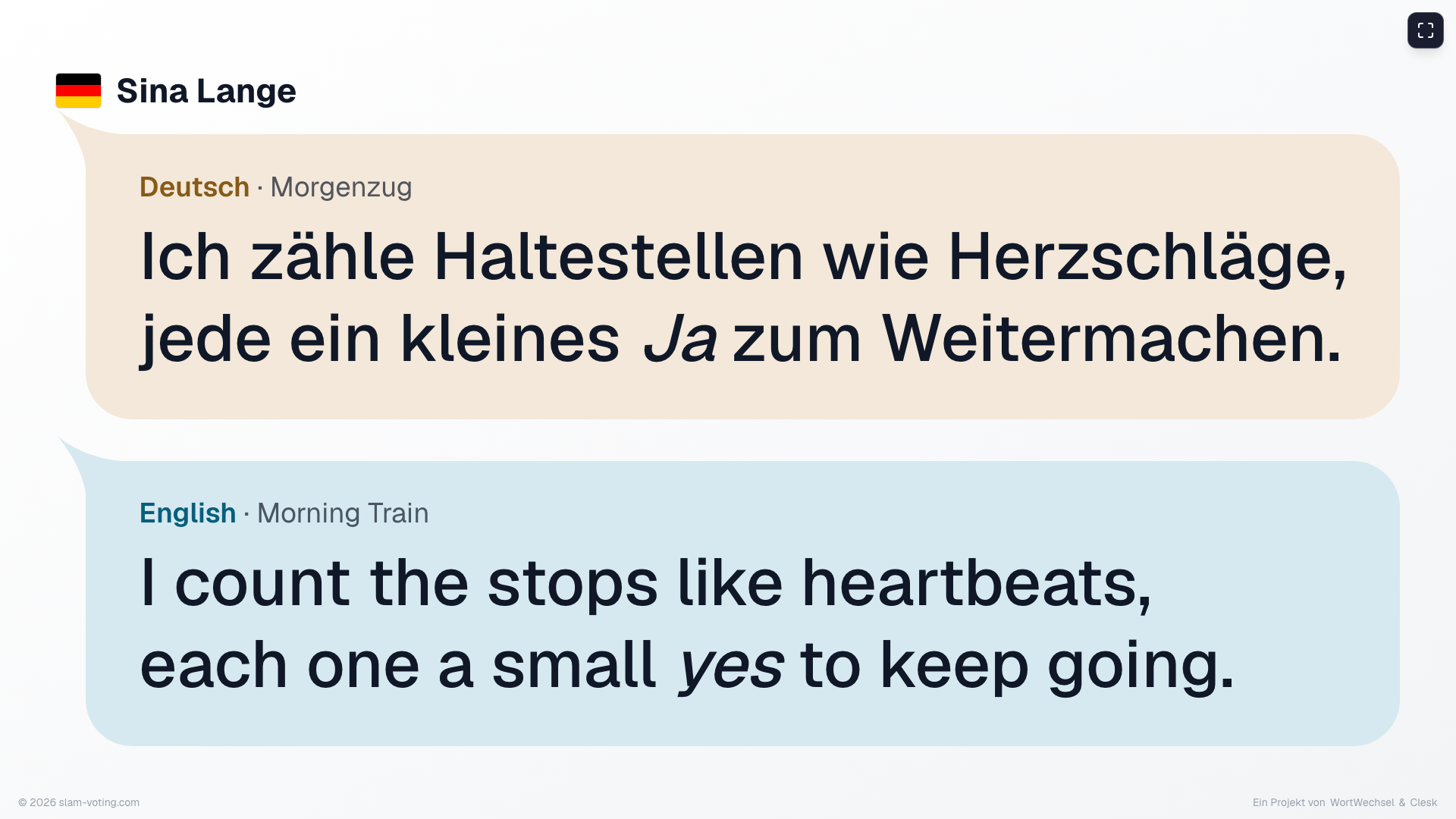
At international competitions, not everyone in the audience understands the language on stage. With texts, you show a translation section by section on the projector during the performance, for example in German and English. A person who understands the language of the performance advances the text in the control view.
Turn on texts
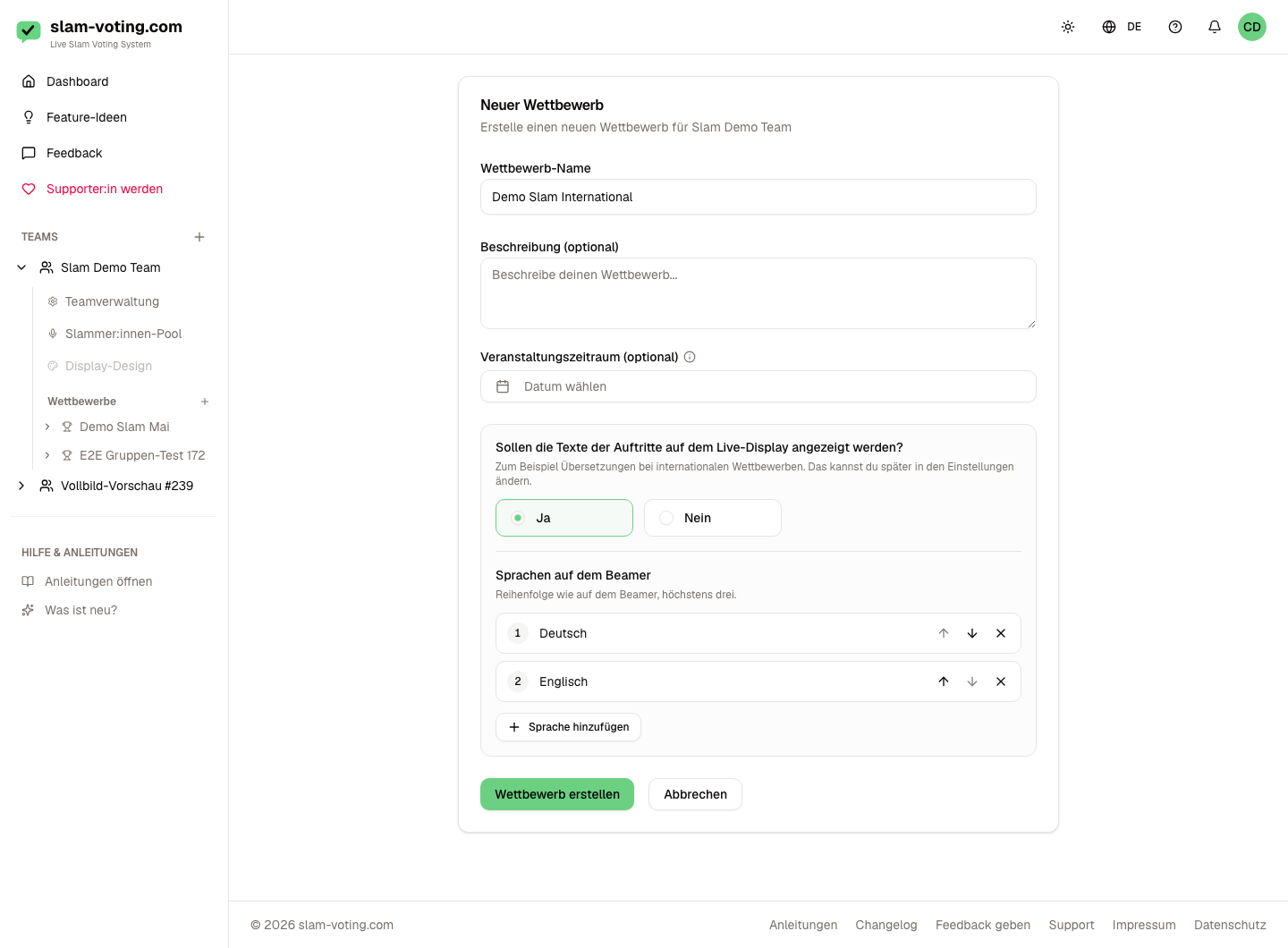
When you create a competition, answer the question Should the texts of the performances be shown on the live display? with Yes or No. With No, everything stays as usual and the features on this page do not appear. You can change your answer later in the competition settings.
Languages on the projector
With Yes, you choose right below which languages the projector shows: up to three, in the order you set. German and English are preselected. Original language additionally shows the language of the performance. Use the arrows to change the order and the X to remove a language. In the competition settings, the Preview of the text slide next to the performer slide shows right away what a text looks like on the projector in the chosen languages.
Add texts
A text belongs to a performer and is then available in all competitions of your team. A performer can have several texts.
- In the competition, open Participants, texts and hosts
- Click Texts in the performer's row
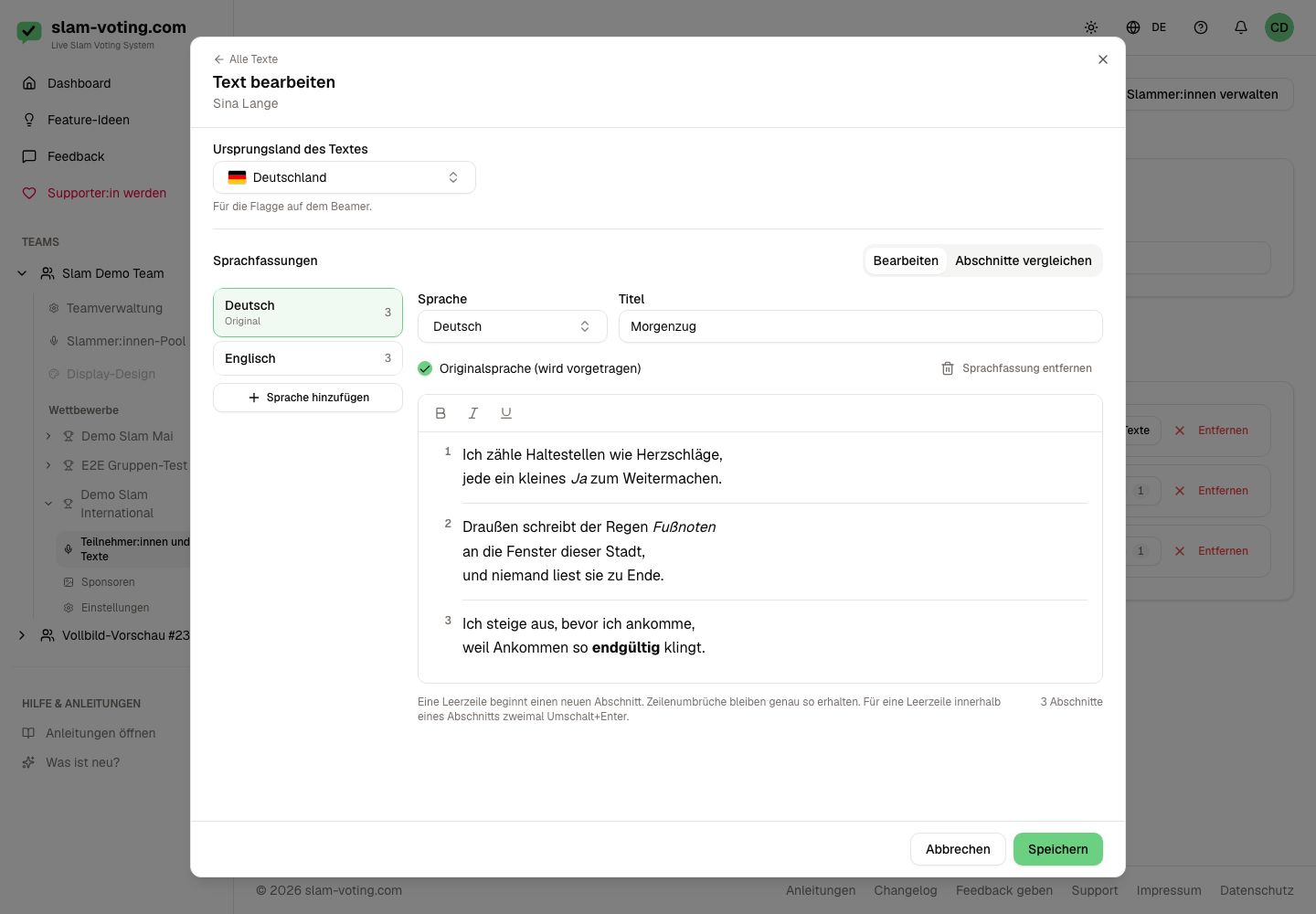
- Click New text and choose the language you are entering the text in
- Enter the title and text, or paste the text from Word
- Use Add language for more language versions, each with its own title
- Click Save
Sections
An empty line starts a new section. Each section later appears on its own on the projector. Short sections of a few lines read best because the font stays large. Line breaks are kept exactly as entered, so verses stay verses. For an empty line within a section, press Shift+Enter twice.
Each language shows its number of sections. If the numbers differ, a notice appears. Under Compare sections, you then see the languages side by side, section by section, and can find the missing or extra empty line.
Formatting, original and flag
- Formatting: bold, italic and underline from the toolbar above the text. When you paste from Word, paragraphs and these three formats are kept; font, size and color are removed.
- Original: mark the version that is performed on stage with Original language (performed).
- Country of origin: sets the flag on the projector.
If a text is missing one of the projector languages, a blue notice explains what the projector shows instead. You can still save and show the text.
Choose the text for a round
In the lineup of a round, choose per slot which text is shown: No text, one of the performer's texts or New text…. If a performer has exactly one text, it is already selected when you add them. When someone advances, choose a different text in the follow-up round or create a new one.
Show texts live
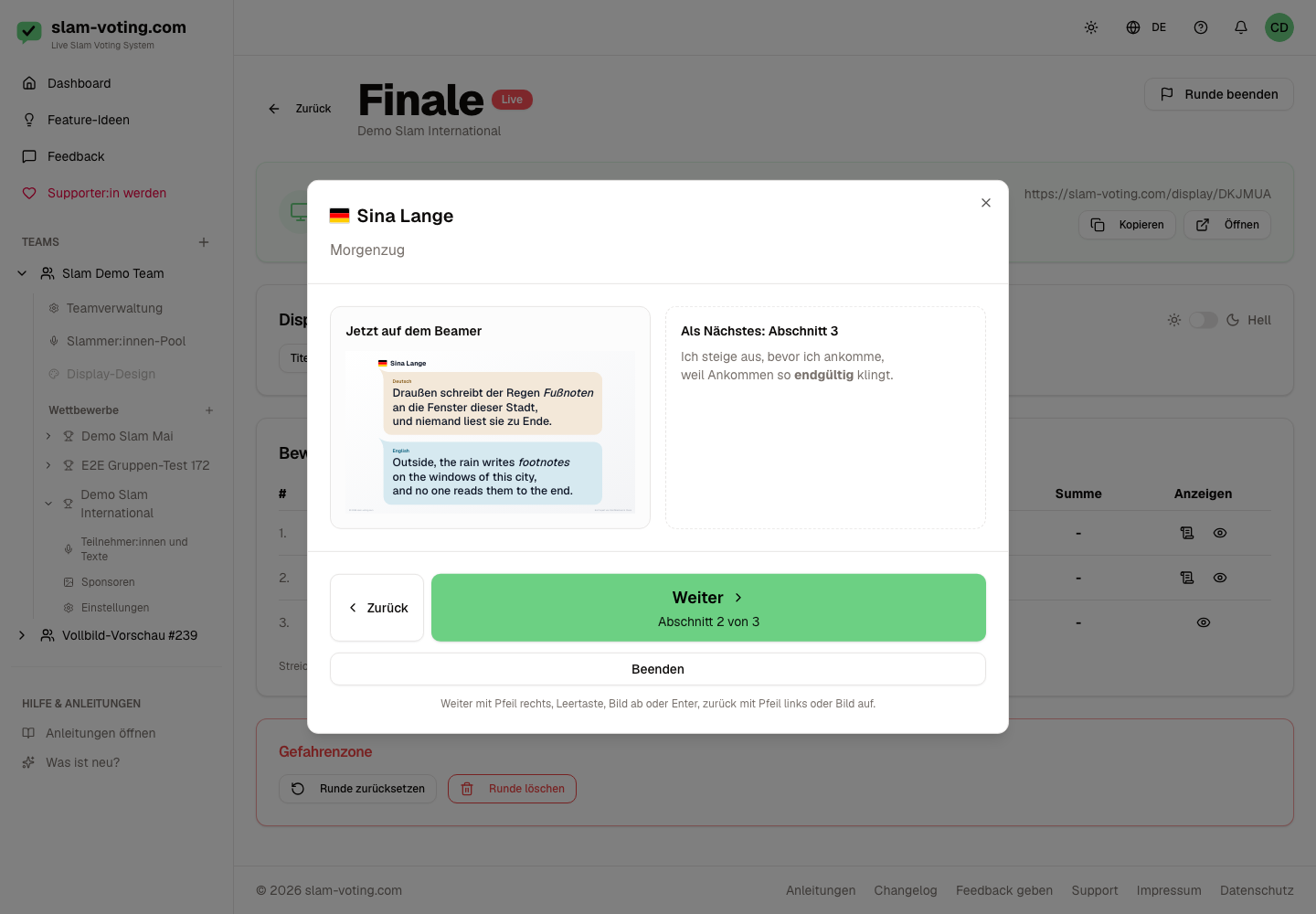
In the live control, performers with a text have a text icon in their row, for jury scoring and applause ranking, including feature guests. Clicking it (Control text) opens the text control.
- Check the text at the top. If the performer has several, you can switch here as long as nothing of it is on the projector yet.
- Click Start: the projector shows section 1.
- Next shows the next section, Back the previous one. "Section 3 of 12" tells you where you are.
- After the last section, click Finish. The projector shows the performer again and scoring continues as usual.
Under On the screen now, you see exactly what the audience sees. The text control also shows the next section and, if the projector does not show the original language, the performance in the original.
Keyboard or presentation remote
Move forward with the right arrow, space, page down or Enter, and back with the left arrow or page up. A presentation remote works just like in a slideshow.
Close and resume
Finish, the X or Escape close the text control; the projector then shows the performer again. Clicking outside the window does not close it. If you closed it by mistake, the text control offers Resume at section … or Start from the beginning in the same browser tab.
If the projector cannot be updated, Screen not updated. appears with Try again. When finishing, you can also choose Close anyway; the projector then keeps showing the text.
Second device
You can control the texts on a separate device while scores are entered on another. Saving scores does not replace a running text on the projector. Deliberate actions such as the eye icon, title or break replace it as usual.
Via link, without an account
If a person without an account of their own pages through the texts, for example at the side of the stage on their phone, create a link in the competition Settings in the Link for an operator card with Create link and send it to them. They see the live round, choose the person who is performing and page through with Start, Next and Back, also with a keyboard or presentation remote. Live control and link control the same text, the last input counts. The link works while a round is live. New link and Delete link make the previous link invalid right away. The card is only there for competitions with texts.
If the person should run the whole evening, including scores and the screen, use the live control link.
What the projector shows
At the top are the flag and the performer's name, below them one speech bubble per language in its own color with the name of the language. The title appears in the first section. The font adjusts so that every section fits without scrolling and every verse line stays on one line where possible. Light or dark follows the display control; with a Supporter subscription, the colors and font from your display settings apply as well.
If a text is missing a projector language, the projector leaves it out. If none match, it shows the available translations, and the original if there is no translation.
Who can see the texts?
Only your team can see the texts. The only public part is the section currently on the projector.
Tips
- Add the texts early and rehearse once with the projector.
- Let a person who understands the language of the performance advance the text.
- One empty line too many or too few shifts all following sections. The notice about differing section counts shows you such spots.