Live Controls
The live controls are your cockpit during the event. From here, you enter scores, control the display, and keep track of standings and ties.
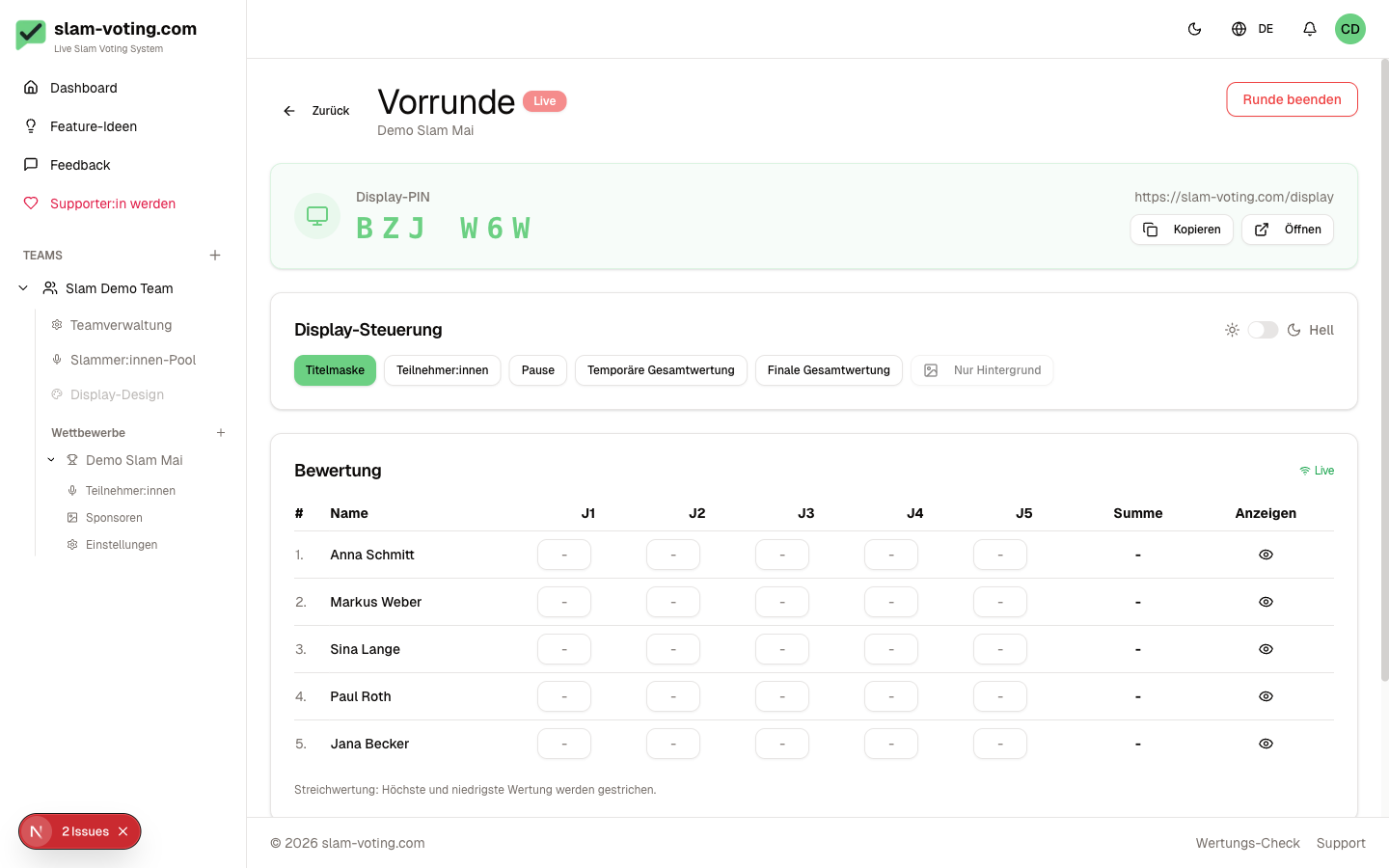
Open the Live View
- Open your competition
- Click Live on the desired round
- The live view opens with the score table and display controls
The round must be in live status. If it is still in draft, switch it to live first.
More room for the table: click Collapse at the bottom of the sidebar. Only a narrow bar with icons remains on the left, and hovering an icon shows its name. The arrow at the bottom expands the sidebar again. The setting applies to all pages of the app on this device.
Switch the Display Screen
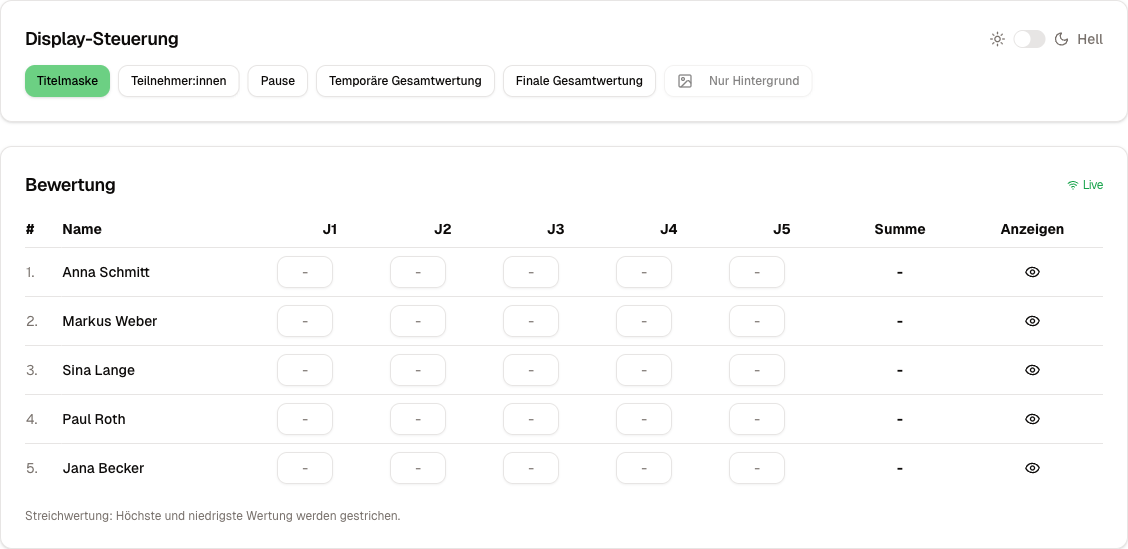
At the top of the live view, you find buttons for the different display screens. A click immediately changes what is shown on the live display:
- Title: competition and round name
- Performer: shows who is currently on stage
- Scores: individual scores after a performance
- Round results: current rankings
- Overall ranking: results across all rounds
- Final overall ranking: final placements (with advancement markers for groups). It only shows locked scores. If someone has scores entered that are not locked yet, the live control asks first; once locked, the person is added automatically
- Break: break screen with optional countdown
- Announcement: your own short text, such as “Next slam on 12 December” (Announcement)
- Participants: overview of all performers
- Sponsors: the sponsor slide, only if the competition has sponsors (Sponsors)
- Video: plays an uploaded video full screen with sound, only if the competition has ready videos (Videos on the projector)
- Host: shows who is hosting, only if the round has hosts (Hosts). If the competition has guests, the button is called Hosts and guests and shows both (Guests)
All connected displays update instantly in real time. Use the Light/Dark switch on the right of the display controls to change between light and dark; the screen currently shown stays as it is. If the projector last ran dark, the next round starts dark too.
Projector Preview
At the bottom right of the live view, a small preview shows exactly what the projector is showing right now, including light or dark mode, background and display design. After every click in the display controls you can see whether the right screen is on, without looking at the projector. The preview is for viewing only; you still control everything with the buttons.
Use the arrow at the top of the preview to collapse it; only the Preview button remains. Click it to bring the preview back. The device remembers your choice. Without a saved choice, the preview is expanded when the screen is wide enough for the live view and the preview side by side, for example at 1920 pixels. The live view becomes slightly narrower so the preview covers nothing. On smaller screens it is collapsed. If you expand it there yourself, it covers part of the live view. Live control via link has the preview as well.
Several Devices
You can open the live view on several devices, for example one for scores and one for texts. With jury scoring, scores do not overwrite each other: if another device changes the same score, the view merges both and shows a notice on the row, see Jury Scoring. You see changes from other devices the next time you save, after a connection interruption or when you return to the view. Still agree on who enters which scores.
Live Control via Link
If someone without an account of their own should run the evening, for example the person at the tech desk, send them a live control link. With it they can start and end rounds, enter and lock scores, resolve tiebreakers, control what the screen shows and show texts, for this one competition. Settings, lineup and participants stay with you; editing, resetting or deleting rounds is not possible via the link.
- Open the competition Settings.
- In the Live control link card, click Create link.
- Copy the link with Copy and send it to the person.
The link is only visible right after you create it. If you need it again later, create a new one with New link. The roles Owner, Admin and Editor can create links.
The link opens an overview of all rounds of the competition. The person starts prepared rounds with Start round and opens live rounds with Open live control, where they see the same live control as you. Each live round shows its display PIN and screen link; Open screen opens the display directly. The link stays valid on their device for 7 days, after that they simply open it again. Sign out on this device ends control on their device.
New link and Delete link make the previous link invalid right away; all devices using it lose control. Only give the link to people you trust with live control, and renew it after the event. If someone only needs to page through texts, the link for an operator is enough.
Link for a Single Round
If someone only takes care of one round, for example the final, give them a link for just that round. With it they can start the round, enter and lock scores, resolve tiebreakers, control what the screen shows, show texts, run the timer and end the round. They do not see any other rounds of the competition.
- Open the round: a prepared one with Edit, a live one with Live.
- At the bottom, expand Live control link for this round and click Create link.
- Copy the link with Copy and send it to the person.
The link opens an overview with only this round. Everything else works like the link for the whole competition: it is only visible right after you create it, New link and Delete link end control on all devices using it right away, it stays valid on a device for 7 days, and Owner, Admin and Editor can create it. Both kinds of links exist independently, with at most one per round. A new round gets its link once it has been saved.
Enter Scores
Jury Scoring
Select the current performer from the list. Enter the scores per juror (J1, J2, J3, ...). The final score is calculated automatically, including drop scoring.
Applause Ranking
Arrange the performers by drag-and-drop or with the arrow buttons by applause volume. 1st place represents the loudest applause.
Show Texts
If the competition uses texts, performers with a text have a text icon in their row. Use it to show the text section by section on the projector during the performance, by click, keyboard or presentation remote. How it works: Texts and Translations.
Timer
If the round has a time limit (Time Limit and Timer), a timer bar appears above the display controls and a timer icon next to every person. Without a time limit you see none of this.
- Click the timer icon next to the person who is performing. The timer runs with the time limit of the round, the button and the bar show the remaining time.
- Pause stops it, Resume continues. Reset sets the full time again.
- If you start the timer for the next person, it starts over for them.
When time is up, the display turns red and counts the overtime up, for example “+0:15”. The timer does not deduct points. All devices with the live control see the same timer, also via link.
The projector shows the remaining time at the top right of the person's slide and in the header of their text. As soon as their scores appear on the slide, it disappears. If the audience should not see the time, switch off Show remaining time on the screen in the competition settings; this applies right away, also to a running timer. The timer bar then shows “Off on the screen”.
Break
Click the Break button to show the break screen on the display. You can also set a countdown timer (duration in minutes or a fixed time).
Announcement
For short notes such as “Next slam on 12 December”, click Announcement.
- Type the text into the field. The buttons above it turn a line into a heading, make words bold or italic or start a bullet list. You can also type the characters yourself:
# Heading,**bold**,*italic*,- item. - The preview shows how it looks on the projector. The font size adapts to the slide, short texts appear large. Up to 500 characters and 12 lines are allowed.
- Click Show on projector. Only now does the audience see the text, typing does not change the projector.
If the announcement is already on the projector, Announcement opens it for editing. The new version only appears once you click Save.
Recently shown lists the texts that were already on the projector in this competition, one click reuses one of them. Texts you need on many evenings can be saved as text snippets and picked under Text snippet. Either way you can adjust the text before showing it. The announcement also works via link, with the same text snippets.
Rounds Without Scoring
A round without scoring (poetry jam) has no score fields. Use the eye next to a person to show them on the projector; texts work as usual. Once everyone has performed, end the round without further checks, or create the second turn right away with End and next round with everyone. After ending, the projector shows the title screen.
End the Round
Once all scores are locked and any tiebreakers have been resolved, the live page suggests ending the round on its own, a green hint appears. You have two options:
- End round: The round switches to completed status.
- End & create follow-up: Completes the round and opens the prefilled form for the follow-up round with the advancing performers right away.
If the round cannot be ended yet, a notice names the reason and the performers concerned: scores that are missing or not confirmed, open ties or a tie for an advancement spot that cannot be shared. If someone did not perform, end the round with End without [name]. They get no place and do not advance.
Every live round can also be ended directly from the round overview; a "Ready to end" hint shows there once all scores are locked.
The display link stays valid. After ending, the display shows the final standings. When the follow-up round starts, every open display switches over automatically, no new link, no black screen. All results are preserved.
"Background Only"
With an active Supporter subscription and a configured background image, you can select the Background Only screen. The display then shows only the image, without text or data. Handy for the time before the event or during longer breaks.