Create a Competition
A competition is the container for your event. It holds one or more rounds, the performers, and all results. You can create as many competitions as you like per team.
Create a New Competition
- Open your team dashboard
- Click New Competition
- Fill out the form (details below)
- Click Create
You are automatically redirected to the overview page of the new competition.
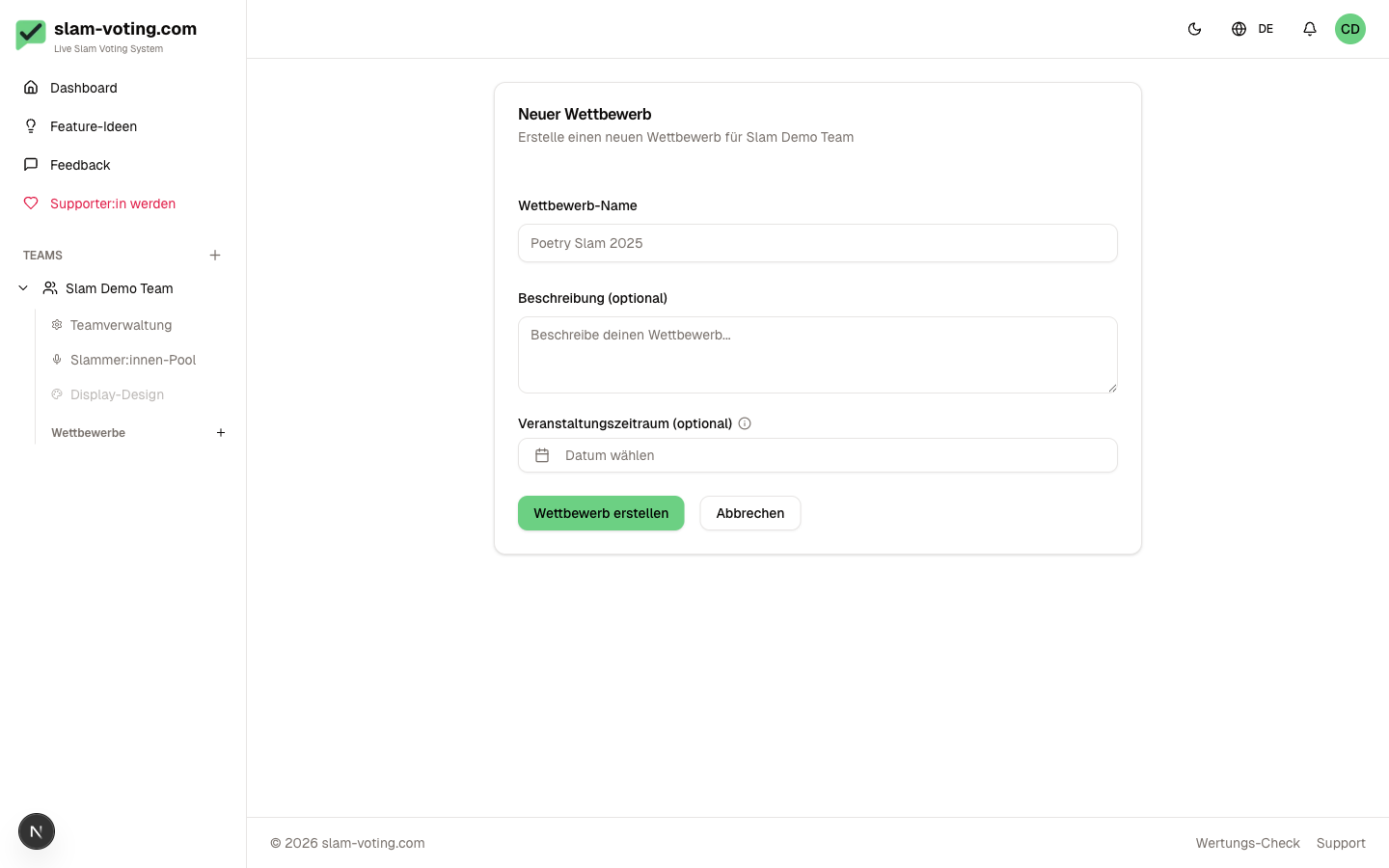
Required Fields
- Name (2-100 characters), e.g. "Poetry Slam Winter Special" or "School Slam 2026"
- Texts on the live display: answer the question “Should the texts of the performances be shown on the live display?” with Yes or No. You only need Yes if you want to show texts or translations on the projector during the performances, for example at international competitions. You then also choose the projector languages. Details: Texts and Translations
Optional Fields
- Description (max. 1000 characters): internal notes or hints for your team
- Event date: a single day or a date range (from/to). Displayed in the dashboard and overview
- Type of event: Poetry slam, with scoring (default) or Poetry jam, without scoring. At a slam, new rounds start with scoring; you can still create individual rounds without scoring. At a jam, new rounds start without scoring; you can still score individual rounds. Details: Configure Rounds
- International event: tick this box if people from different countries perform, details below
- Time limit per performance in minutes (1 to 60), if you need a timer, details below
International Event
With the International event box ticked, you set a country for each person, and the screen shows it with a flag below the name. Open the Participants of the competition: every row has a country picker. Type a few letters, for example “austria”, “Österreich” or the code “AT”, and confirm with Enter. The country belongs to the person and applies in all competitions of your team. You can also set it right in the performer pool when you add or edit a person.
Without the box, everything stays as before. You can change this later in the competition Settings and switch the display off with Show country on the beamer.
Time Limit and Timer
If you enter a time limit per performance, for example 6 minutes, it applies to all rounds of the competition, including existing ones. In the form of a round you can change it for that round, for example to give a final more time, or clear it there if the round does not need a timer. You start the timer in live control next to the person who is performing, see Timer. Without a value there is no timer and everything stays as before.
In the competition Settings you can change the time limit later, rounds with their own time limit keep theirs. With a time limit, the screen shows the remaining time; switch this off with Show remaining time on the screen. The previews of the performer slide and the text slide show right away where the remaining time appears.
Slug
A slug is automatically generated from the name when creating the competition, e.g. "poetry-slam-winter-special". The slug is part of the public URL:
slam-voting.com/d/{team-slug}/{competition-slug}/{round-id}
You can change the slug later in the competition settings. Note that this will change all public links.
Password Protection
Optionally, you can protect a competition with a password. Audience members must then enter the password before they can see the live display. Useful for private events or rehearsals.
You activate password protection in the Competition Settings after creating the competition.
Editing Later
All fields can be changed at any time in the competition settings: name, slug, description, date, password, time limit, and texts with the projector languages. Even ongoing competitions can be edited.
You can reach the settings via the gear icon on the competition overview page.
Next Step
Your competition is set up. Next, create the first round: Configure Rounds