Configure Rounds
Each round is an independent scoring unit within your competition. You decide how scoring works, who performs, and in what order.
Create a Round
- Open the overview page of your competition
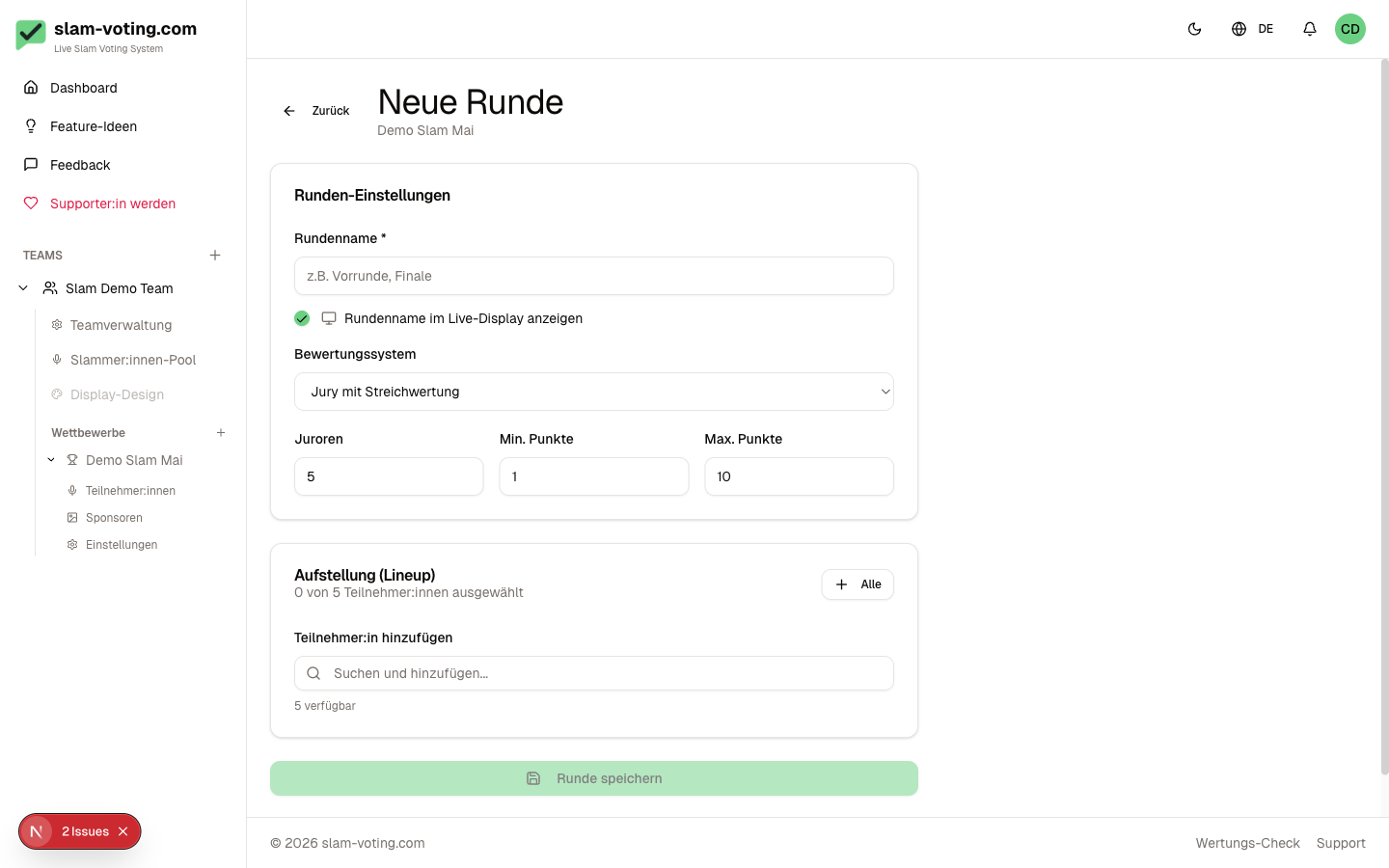
- Click New Round
- Configure the settings (details below)
- Set up the lineup
- Click Create Round
Choose a Scoring Method
You choose one of two methods per round:
Jury Scoring
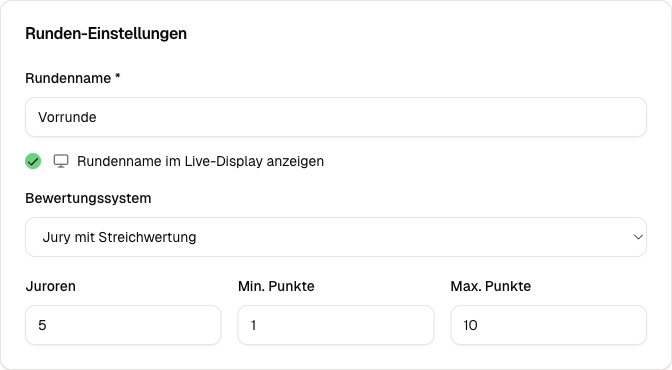
A fixed set of jurors assigns scores. You configure:
- Number of jurors, e.g. 5
- Score range, minimum and maximum (e.g. 1 to 10)
- Drop scoring: drop the highest and/or lowest score (optional, enabled by default)
More details: Jury Scoring
Applause Ranking
The audience decides by applause. You rank the performers by volume. No scores, just placements.
More details: Applause Ranking
Round Name and Display
Each round gets a name (e.g. "Preliminary", "Final"). Optionally, you can set whether the round name is shown on the live display.
Draft vs. Live
New rounds start in draft status. In this state, you can freely edit everything: change the lineup, switch the method, configure groups.
Once you go live with the round, a display PIN is generated and live scoring can begin. In live status, the lineup and scoring method are locked.
Multiple Rounds and Overall Ranking
A competition can have any number of rounds (e.g. preliminary, semifinal, final). Each round has its own scoring. Rounds are numbered automatically.
When you select the Overall Ranking or Final Overall Ranking screen on the live display, the system shows the combined results across all completed rounds.
Edit a Round
In draft status, you can change all settings. Click Edit on the competition overview page.
In live status, certain changes are restricted (e.g. scoring method, lineup order) to keep the ongoing scoring consistent.
Define Advancing Performers (optional)
Even without groups, you can specify how many performers advance when setting up a round (field "Advancing"). Qualifiers receive a small check in the top-right corner of their card in the final standings. Long names can wrap. In group rounds, qualifying cards remain green.
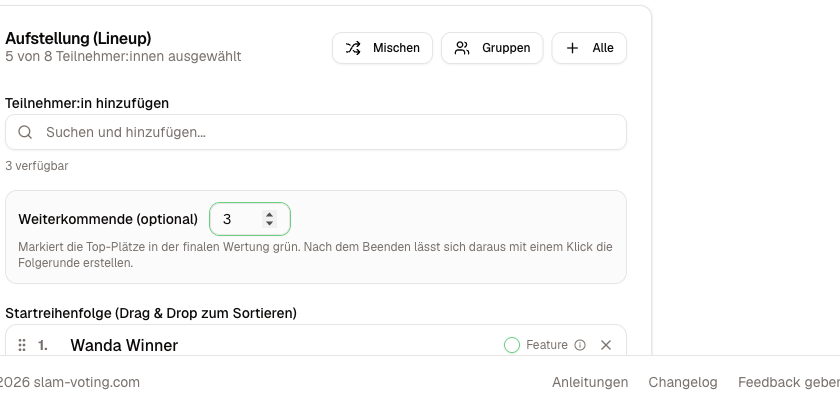 If there is a points tie for the last advancement spot, the system requires a tie-break, such a spot cannot be shared. If you leave the field empty, nothing changes about the usual flow.
Complete a Round
After scoring is finished, you can complete the round. The display link stays valid and keeps showing the final standings, the screen does not go black. The results are preserved, of course.
Once all scores are locked (and no tie-break is pending), the live page suggests ending the round on its own:

If the round has advancing performers, "End & create follow-up" does both in one click: the round is completed and the prefilled form for the next round opens right away.
Alternatively, you'll find End round in the competition's round overview. Once all scores are locked, the card also shows "Ready to end":

Create a Follow-up Round from the Advancing Performers
If a completed round has advancing performers, the competition page shows the button "Follow-up round with top N".

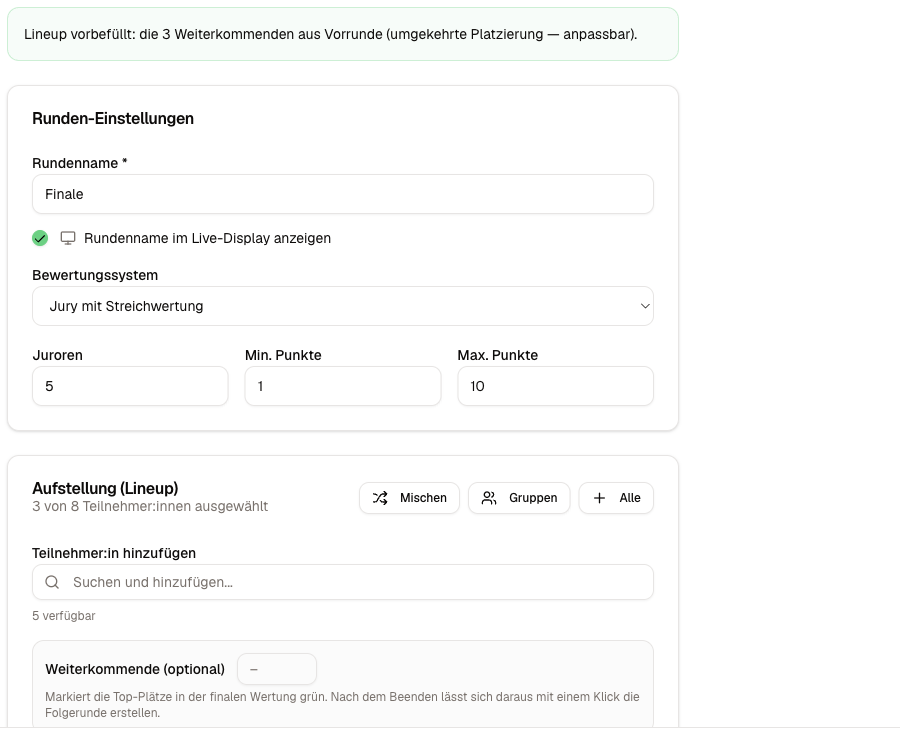
One click opens the round form already prefilled:
- The lineup contains the advancing performers in reversed placement (the best-placed performs last), you can adjust the order as usual.
- The scoring settings (jurors, score range) are inherited from the previous round.
- If needed, you can add further source rounds and merge the advancing performers of several preliminary rounds into one round (e.g. 4 preliminaries → one final).
As soon as you start the follow-up round, all open displays of the previous round(s) switch there automatically, without a new link and without anyone clicking at the projector. Details on display behavior: Screens overview.