Performer Pool
The performer pool is your central database for all performers who appear at your events. You create a person once and can then use them in any number of competitions and rounds.
Why a Pool?
Without a pool, you would have to type in all performers from scratch for every new competition. The pool saves time: name, description, and Instagram link are already stored. When creating a round, you simply select from the pool.
Create a Performer
- Open the Team Dashboard
- Navigate to Performers in the sidebar
- Click New Performer
- Fill out the form:
- Name (required): stage name or real name
- Description (optional): short bio or notes
- Instagram URL (optional): link to the Instagram profile. If you like, the screen shows the Instagram name below the person’s name, see Screens Overview
- Country (optional): type a few letters and confirm with Enter. The country applies in all competitions of your team; at an international event the screen shows it with a flag below the name
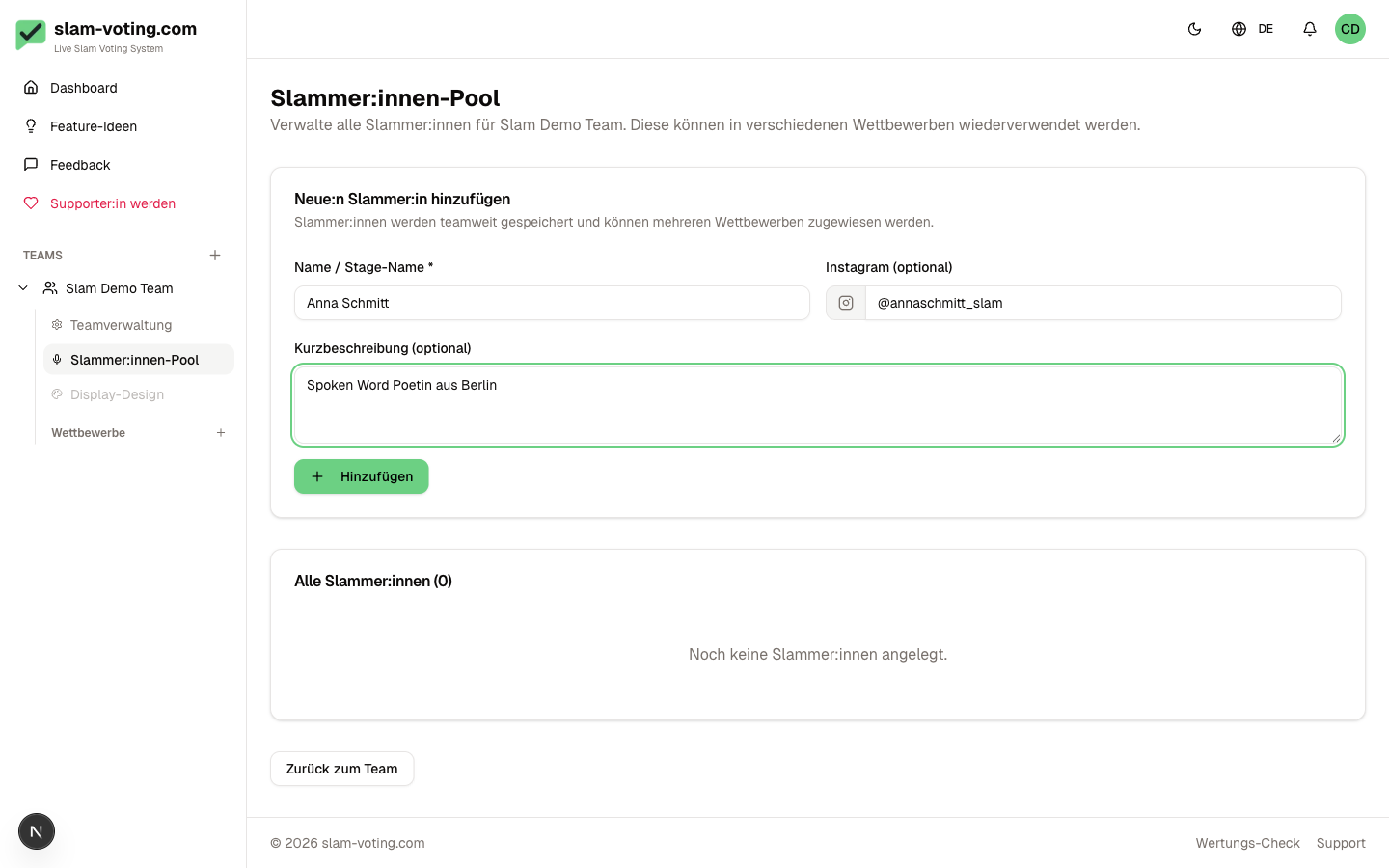
Pool Overview
After creating performers, you see all of them in an alphabetical list.
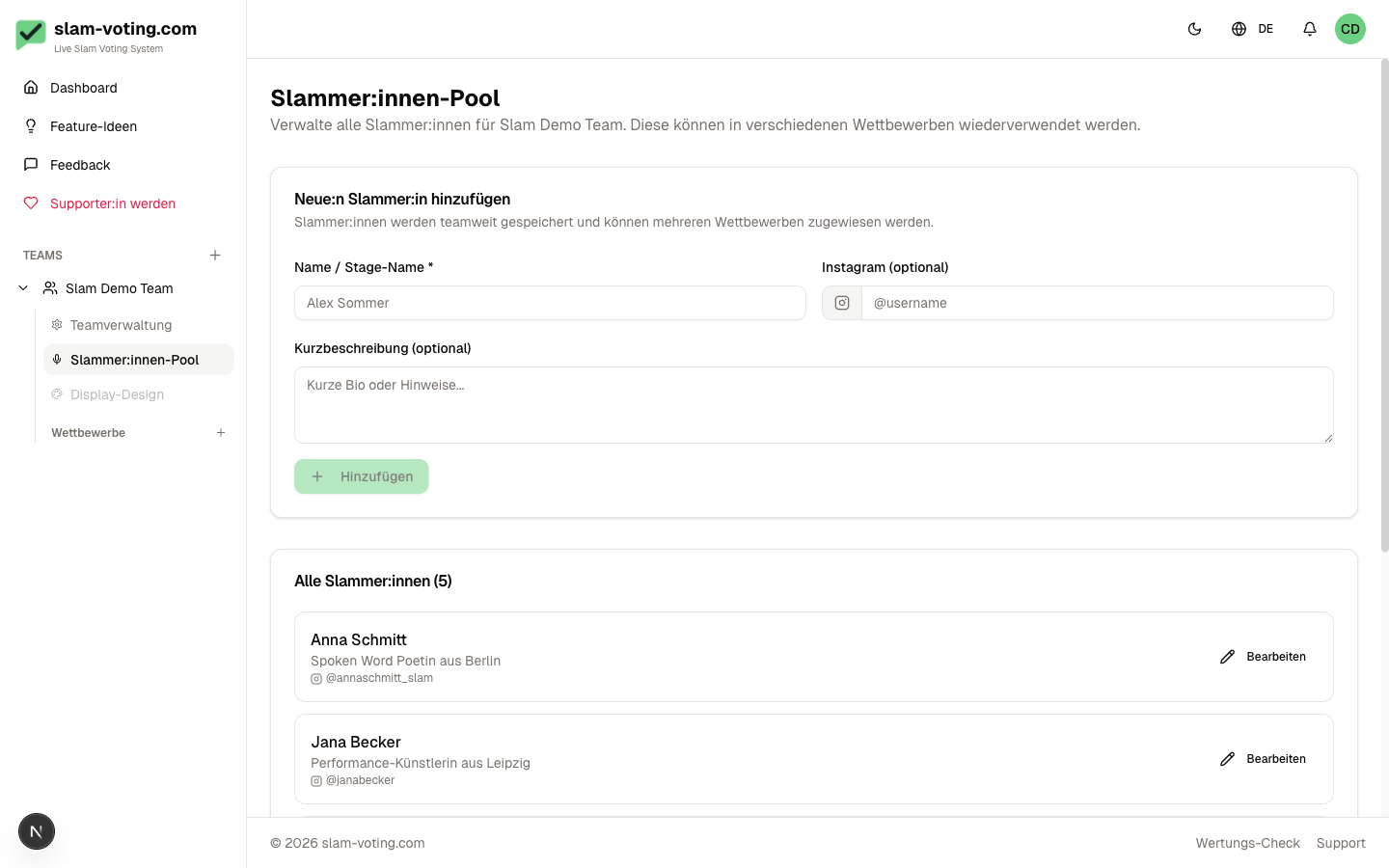
Maintain the Pool
You can edit or deactivate performers at any time. Deactivated performers remain in the pool but no longer appear in the selection when you set up a lineup.
The list is sorted alphabetically and searchable.
Sponsor
If a person is sponsored by an institution, the screen shows it during their performance. Click Edit next to the person and then Add sponsor:
- Sponsor name, for example a foundation or an association
- Logo (supporter feature), PNG, JPG, WebP or SVG up to 2 MB
- Show on the projector: Logo and name, Logo only or Name only
The sponsor appears on the person's slide below the name and country, also when their scores are shown, and with texts and translations in the header of the text slide after the name. This also works when you run the live control in the app. Without supporter access, the screen shows the sponsor's name. If you change the sponsor while a round is live, the change appears on the screen with the next person.
Pool vs. Assignment
The pool is team-wide, not competition-specific. Performers from the pool are assigned to a specific round only when you set up the lineup. You can also create performers directly when setting up a lineup without filling the pool beforehand. These are then automatically added to the pool.
In the competition, add everyone who performs a text under Participants and hosts, including features who do not count toward the overall ranking. Whether someone performs as a feature in a round is set in the round: tick Feature in the lineup, see Set Up Lineup.
Hosts
Hosts come from the same pool. In the competition, open the participants page. Under Hosts (optional), choose people from the pool or create new ones, as many as you need. Hosts do not count as participants: they are not part of any lineup, scoring or result. If someone from the hosts also performs a text, for example with a translation on the beamer, add them as a participant as well.
When creating or editing a round, choose who hosts it under Hosts in this round. All competition hosts start out checked; uncheck everyone who does not host this round.
In the live control, show the hosts with Host. With several hosts, choose one of them or All together.
Guests
Guests perform without scoring and without a slam text, for example with music. Below the hosts you find Add a guest, e.g. music. Then choose people from the pool or create new ones in the Guests (optional) section. Each guest can get a short label such as “Music” or “Live drawing”, which the beamer shows above the name; without a label it says “Gast”. Guests apply to the whole competition, not just one round, and like hosts they do not count as participants. Anyone who performs a text belongs with the participants, also as a feature.
If there are guests, the button in the live control is called Hosts and guests (without hosts just Guests). Choose one person or All together. Without guests, everything stays as before.
Permissions
Owners, admins, and editors can edit the pool. Viewers can see the pool but cannot make changes.