Screens Overview
The live display always shows exactly one screen. You switch screens via the live controls. Here is an overview of all available screens.
One link for the whole evening: The display link stays valid after a round ends and shows the final standings. If you create the follow-up round from the advancing performers and start it, every open display switches there automatically, the projector only needs to be set up once. If the connection drops briefly, the display fetches the current state automatically afterwards.
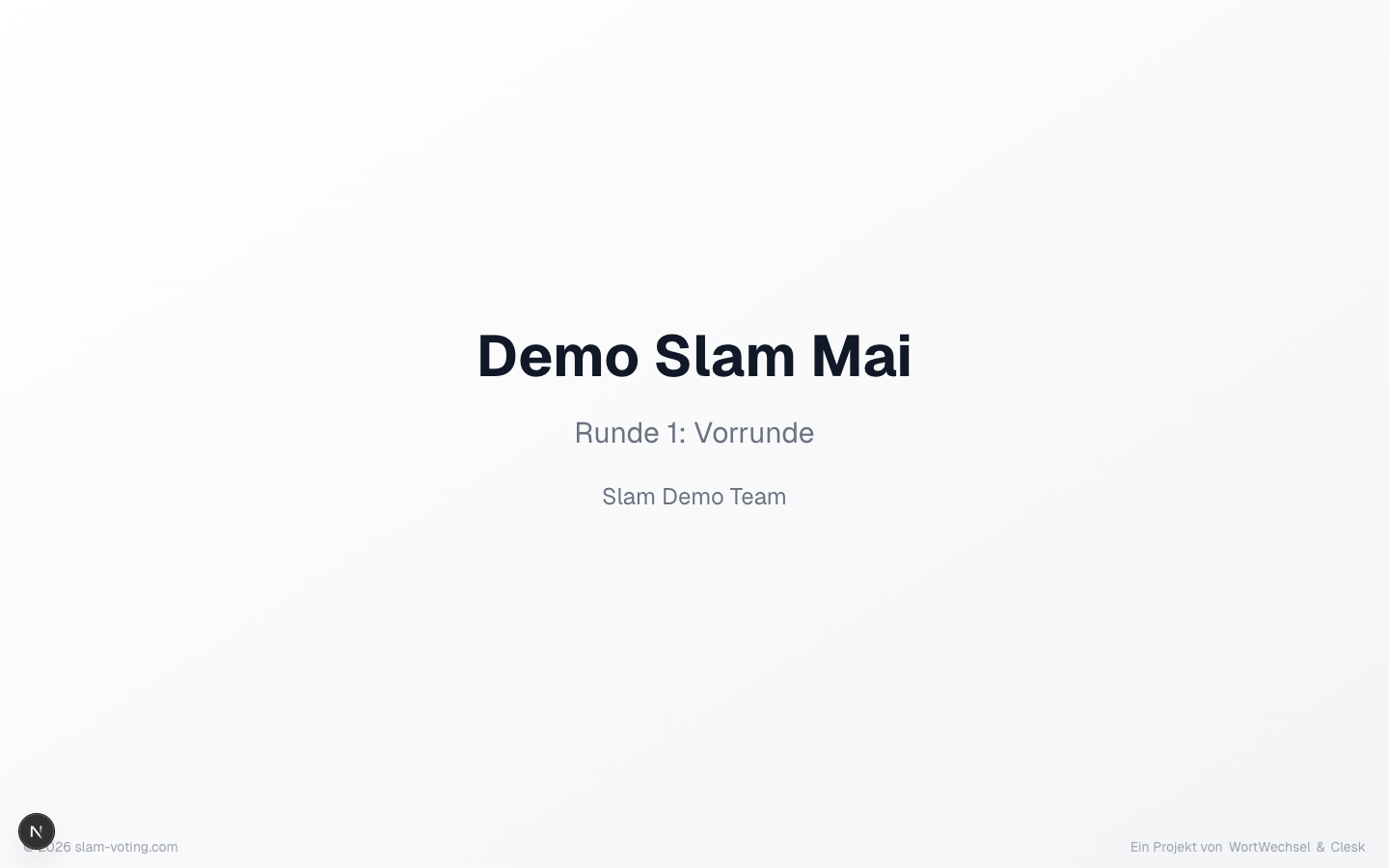
Title
Shows the name of the competition and the current round. Ideal as an opening screen before the event or when you welcome the audience.
Performer
Shows the name of the person currently on stage. For feature guests, an additional badge appears. Use this screen to announce the next performance.
At an international event, the flag and country of the person appear below the name. If you like, the slide also shows the Instagram name from the performer pool as @name: in the competition Settings, switch on Show Instagram name on the screen; it is off by default. The Preview of the performer slide shows right away what it looks like. If you change this while a round is live, reload the live control; the screen picks it up from the next display action.
If the person has a sponsor in the pool, it appears below, as a logo, name or both.
If a timer is running for the person, the remaining time appears at the top right, in red with a plus after time is up. You can switch it off with Show remaining time on the screen in the settings. As soon as their scores appear on the slide, it disappears.
Text
Shows the current section of a text during a performance, one speech bubble per language, with the flag and the performer's name at the top, followed by a sponsor if one is set. Only for competitions with texts and translations, controlled with the text icon in the live control. If a timer is running for the person, the remaining time appears on the right of the header.
Scores
Shows the individual scores from all jurors after a performance. Dropped scores are shown with a strikethrough. The final score appears prominently below.
This screen is only available with jury scoring. With applause ranking, there are no individual scores.
Round Results
The current ranking of all performers in this round. Shows name, scores, and placement. Feature guests are not listed in the ranking.
When groups are active, results are displayed grouped.
Overall Ranking
Combines the results of all completed rounds into an overall ranking. This screen is relevant when your competition has multiple rounds (e.g. preliminary + final).
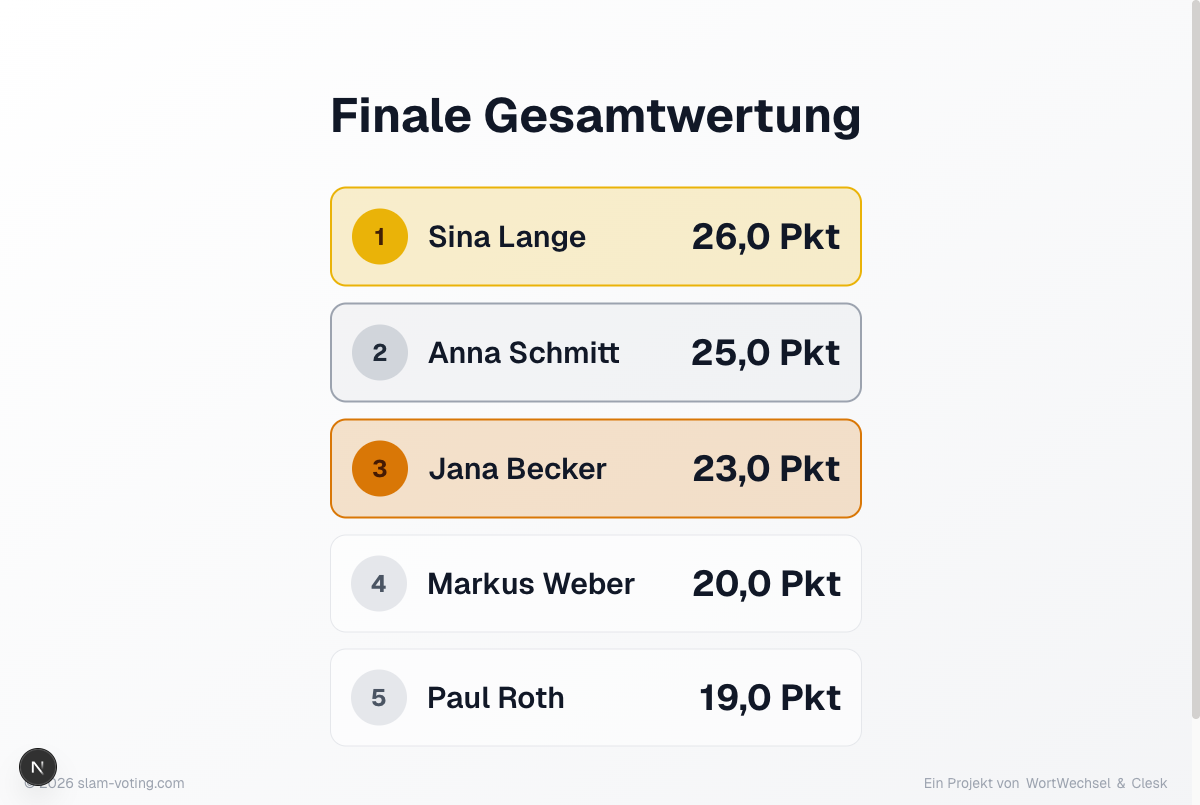
Final Overall Ranking
Similar to the overall ranking but with final placements. Only available once all open tiebreakers have been resolved. With groups, it additionally shows who advances and who moves up as a wildcard. With an active Supporter subscription, you can enable an optional confetti animation. Under Screen Content you can also show the slide without points, so it only lists place and name; tied performers still share the same place.
Break
Break screen, e.g. for setup breaks or drink breaks. You can set a countdown timer, either as a duration (e.g. 15 minutes) or as a fixed time (e.g. "Back at 8:30 PM").
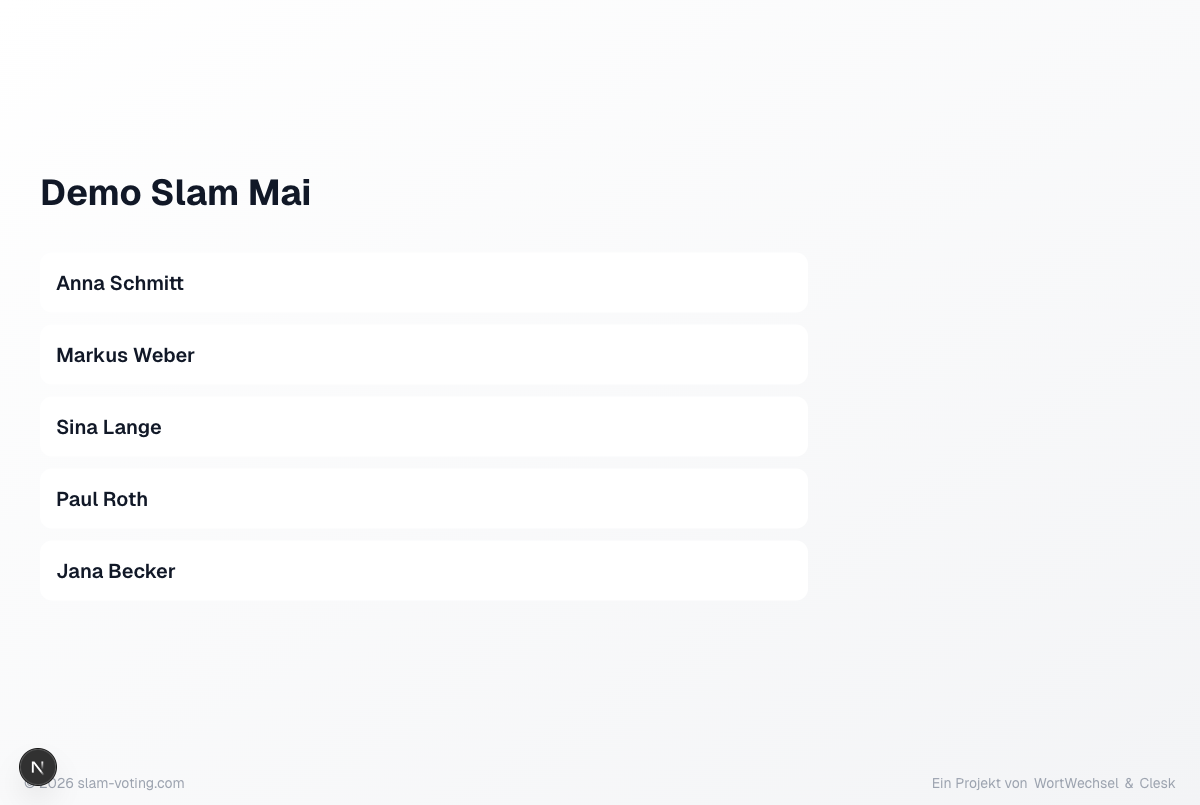
Participants
Overview of all performers in this round. Shows names and, with active groups, the group assignment. Feature guests appear on their own with a badge, not in a group: before the groups if they open the round, otherwise after them.
Host
Shows who is hosting, styled like the “On stage now” screen. With several hosts, all names appear one below the other. Show it in the live control with Host if the round has hosts.
If the competition has guests, the same slide shows them under their label (such as “Music”, otherwise “Gast”), alone or together with the hosts. The button is then called Hosts and guests.
Announcement
A short text of your own, such as “Next slam on 12 December” or notes about the evening, with heading, bold, italic and bullet list. The font size adapts to the slide, short texts appear large. The projector only shows the announcement once you save it in the live control. How it works: Announcement.
Sponsors
The sponsor slide shows all logos of the competition on white cards, in the order of the sponsors page and in one of three layouts: grid, main sponsor or tiers. Show it at any time in the live control with Sponsors. Details: Sponsors.
Tiebreaker Screens
During a tiebreaker, special screens are shown automatically:
- Announcement: indicates that a face-off is taking place
- Performer call-up: during applause voting, the affected performers are called up one by one
- Paddle vote: during an X/O decision, the display shows the assignment and a live tally
- Result: the outcome of the face-off
Background Only (Supporter)
Shows only the configured background image, without text or data. Only available with a Supporter subscription and an uploaded image.