Set Up the Display
The live display shows results in real time on a projector, TV, or your audience's smartphones. Access works via a 6-digit PIN, similar to Kahoot.
Find the PIN
Each round automatically has its own PIN. You can find it by:
- Opening the live view of your round
- The PIN is shown at the top (e.g.
AB12CD) - Share this PIN with your audience

Open the Display
There are two ways to open the display:
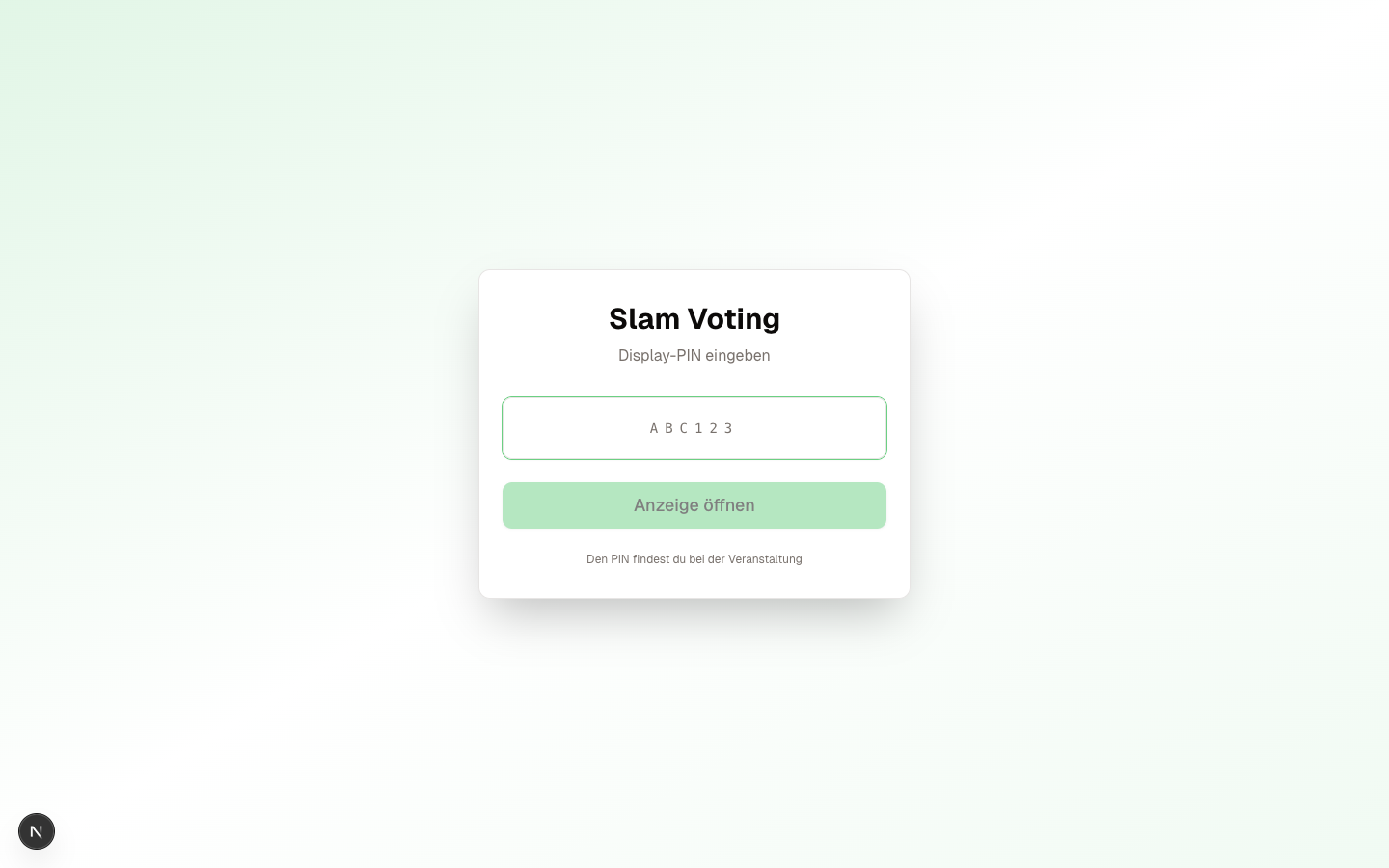
Option 1: PIN Entry
- Open slam-voting.com/display on the projector laptop or smartphone
- Enter the 6-digit PIN
- The display connects automatically
Option 2: Direct URL
Each round also has a public URL in the format:
slam-voting.com/{team-slug}/{competition-slug}/{round-id}
The round-id is a technical ID (not a readable name). The easiest approach is to copy the full URL directly from the app (top right in the live view) and share it on posters or social media.
What Does the Display Show?
The host controls which screen is currently displayed. Available screens:
- Title: name of the competition and round
- Performer: who is currently on stage?
- Scores: individual scores after a performance
- Round results: rankings after a round
- Overall ranking: results across all rounds
- Winner: reveal with optional confetti animation
- Break: break screen with optional countdown
- Participants overview: all performers at a glance
Real-Time Updates
The display updates automatically in real time. As soon as you select a new screen or enter scores as host, the audience sees the change instantly without reloading the page.
Enter and Exit Fullscreen
Click the expand icon in the top-right corner. It is visible for three seconds when the display opens. Moving the mouse or tapping the display reveals it again. The first touch at a hidden icon only reveals it; tap it again to enter fullscreen.
In fullscreen, an X appears in the same place. Click it or press Escape to exit. On mobile devices, the browser's native back action may also exit fullscreen where supported. Scores and following rounds continue updating.
Use Tab to focus the control, then Enter or Space to activate it. It stays visible while it has keyboard focus. Browsers without native fullscreen support show a short notice.
Optional Display Statistics
The cookie banner offers a separate choice for display statistics. The display remains fully usable without consent. Statistics count the same IP address once per round within a fixed 30-day window. Devices on the same Wi-Fi may share an IP address, so this is not an audience headcount.
Use the cookie icon in the bottom-right corner to reopen settings. Move the mouse or tap to reveal it. Withdrawing consent removes your contribution while it can still be linked to your saved consent.
Tips for the Projector
- Use the expand icon in the top-right corner to enter fullscreen
- Use dark mode for better readability on projectors
- Test the connection before the event. A quick trial run saves stress.
Password Protection (Optional)
You can optionally protect a round with a password. In that case, audience members must enter the password before they can see the display. Useful for private events.
Next Step
Display up and running? Learn more about the different scoring methods.