Search docs
Search guides, terms and topics
Live Controls
The live controls are your cockpit during the event. From here, you enter scores, control the display, and keep track of standings and ties.
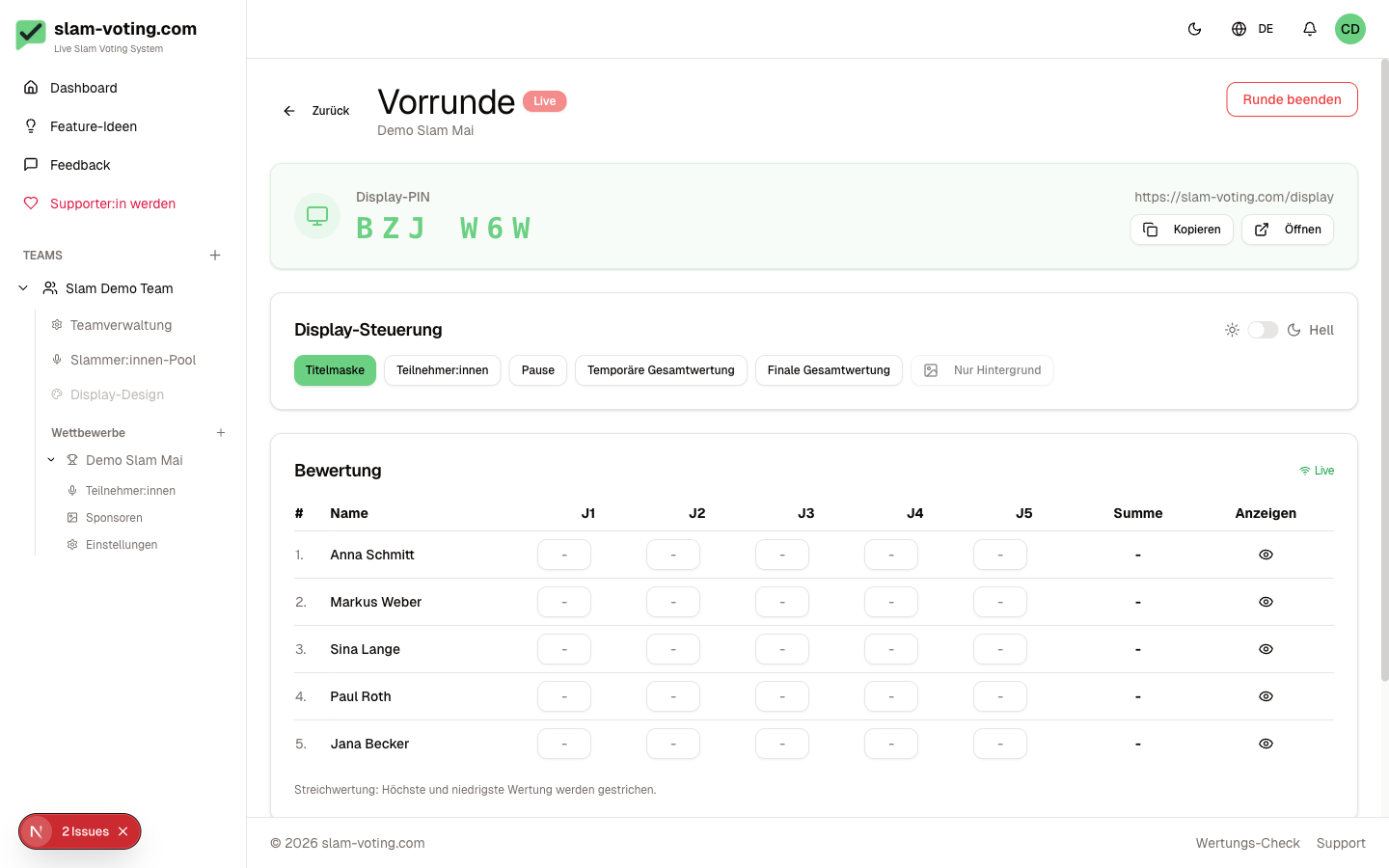
Open the Live View
- Open your competition
- Click Live on the desired round
- The live view opens with the score table and display controls
The round must be in live status. If it is still in draft, switch it to live first.
Switch the Display Screen
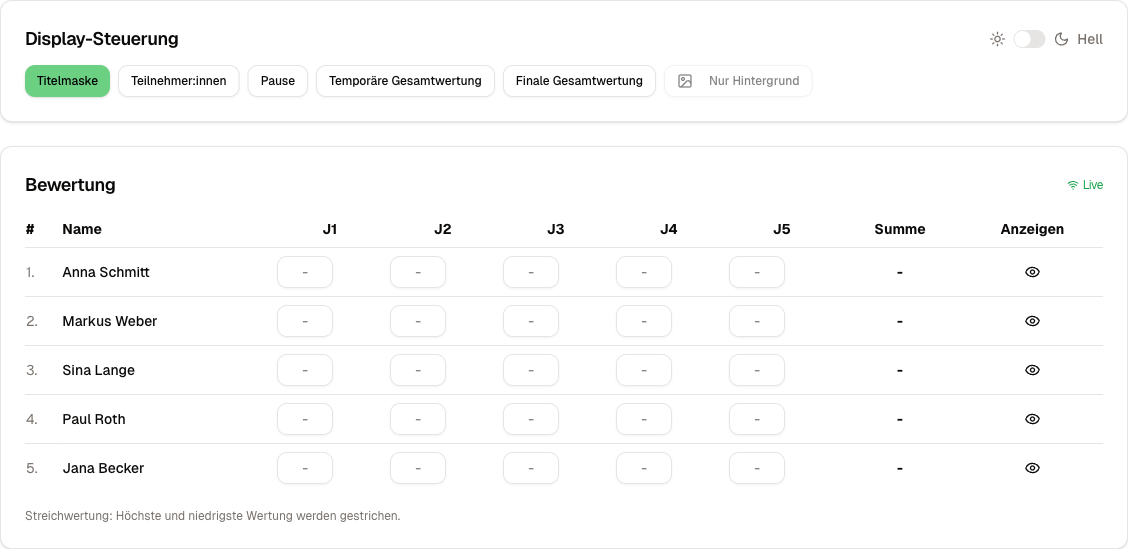
At the top of the live view, you find buttons for the different display screens. A click immediately changes what is shown on the live display:
- Title: competition and round name
- Performer: shows who is currently on stage
- Scores: individual scores after a performance
- Round results: current rankings
- Overall ranking: results across all rounds
- Final overall ranking: final placements (with advancement markers for groups)
- Winner: reveal with optional confetti animation
- Break: break screen with optional countdown
- Participants: overview of all performers
All connected displays update instantly in real time.
Scorekeeper Lock
Only one person can enter scores per competition at a time. The lock is automatically assigned when you open the live view. Other team members see a notice that someone is already active.
Enter Scores
Jury Scoring
Select the current performer from the list. Enter the scores per juror (J1, J2, J3, ...). The final score is calculated automatically, including drop scoring.
Applause Ranking
Arrange the performers by drag-and-drop or with the arrow buttons by applause volume. 1st place represents the loudest applause.
Break
Click the Break button to show the break screen on the display. With an active Supporter subscription, you can set a countdown timer (duration in minutes or a fixed time).
Complete the Round
When all performances have been scored and any tiebreakers have been resolved, you can complete the round. The display PIN is deleted and the round switches to completed status.
"Background Only"
With an active Supporter subscription and a configured background image, you can select the Background Only screen. The display then shows only the image, without text or data. Handy for the time before the event or during longer breaks.