Search docs
Search guides, terms and topics
Team Settings
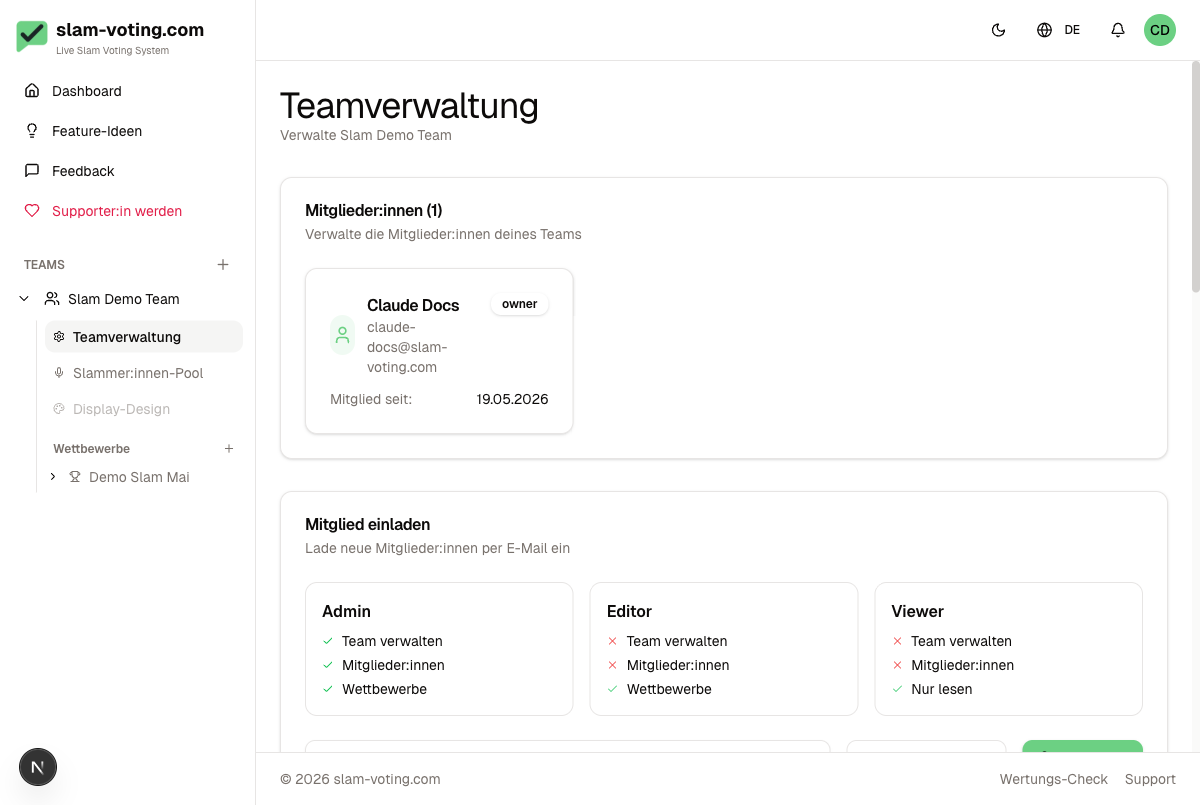
In the team settings, you manage the basic details of your team. Owners and admins have full access. Editors can see the page but can only manage the sponsor logo and leave the team. Actions like name, slug, logo, members, owner transfer, or deletion are reserved for the owner (admins share most rights, except for owner transfer and team deletion).
Name and Slug
The team name is displayed in the app and in emails. The slug is part of the public URLs for your competitions, e.g. slam-voting.com/your-slug/competition/round.
You can change both at any time. Note: If you change the slug, old links to your competitions will stop working. The new slug must be unique and may only contain lowercase letters, numbers, and hyphens.
Team Logo
You can upload a logo that is displayed in the dashboard and on the live display (if enabled in the screen settings). The image is automatically optimized.
Owner Transfer
The owner can transfer their rights to another team member. This is useful when responsibility for an event series is passed on to another person.
Process:
- Open the team settings
- Scroll to the Owner Transfer section
- Select the member from the dropdown
- Confirm the transfer
Restrictions:
- You cannot transfer the rights to yourself
- If you have a recurring Supporter subscription (monthly or yearly), you must cancel it first. Lifetime and gifted subscriptions do not block the transfer.
- After the transfer, you are automatically downgraded to admin
- This action cannot be undone
The new owner receives an email notification about the transfer.
Delete Team
Only the owner can delete a team. Deleting a team removes all data associated with it: competitions, rounds, results, performers, and settings. This action is permanent.
With an active Supporter subscription: You will be asked to confirm cancellation of the subscription. For lifetime or gifted subscriptions, you must explicitly confirm the loss of Supporter features.
Leave Team
Every member except the owner can find the Leave Team button in the team settings. After leaving, you no longer have access to the team's data. You can only rejoin if you are invited again.